Configure SSH on a Cisco Router
Telnet has long been used to manage network devices remotely, but it has one serious drawback: everything it sends, including usernames and passwords, travels across the network as plain text. Anyone capturing that traffic can read it directly. Secure Shell (SSH) was designed to solve exactly this problem — it encrypts the session end-to-end and authenticates it using an RSA public/private keypair, so credentials and commands can no longer be read in transit.

Configuration
Setting up SSH on a Cisco router takes a handful of steps.
1. Set a hostname. SSH needs a hostname and domain name to generate its RSA keys from, so the device must have a hostname configured first:
Router(config)#hostname R12. Configure a domain name.
R1(config)#ip domain-name 9tut.com3. Generate an RSA keypair.
R1(config)#crypto key generate rsaThe router combines the hostname and domain name to label the generated keys — in this case “R1.9tut.com”. During generation, the router also asks for a modulus size, which can range from 360 to 4096 bits; a size of 2048 bits is considered safe for current use and is a reasonable default to choose.
4. Configure the VTY lines to accept SSH.
R1(config)#line vty 0 4
R1(config-line)#transport input ssh
R1(config-line)#login local
The transport input ssh command restricts remote access on these lines to SSH only, rejecting Telnet connections. If both protocols need to be allowed — for example during a migration period — the command can instead be entered as transport input ssh telnet, which permits either one.
5. Create a local user account. Since login local was configured above, the router checks incoming connections against its local user database, so at least one user account must exist:
R1(config)#username admin password password_SSHVerification
SSH can be tested directly from another Cisco device using the built-in SSH client:
R2#ssh -l admin 192.168.12.1This connects to R1 at 192.168.12.1 using the username “admin”.
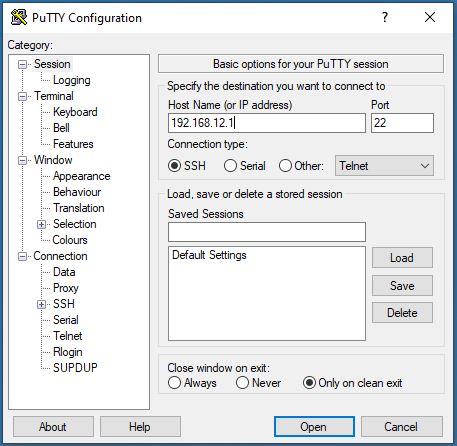
From a regular computer, a dedicated SSH client is needed since Windows and many other systems do not include one built in by default. PuTTY is one of the most popular and widely used free SSH clients for this purpose.